


HD Camera for Android: 4K Cam
4.6843.00 Reviews
App Specs
- Version
- 3.8.6
- Updated On
- License
- Free
- Downloads
- 10,000,000+
- Developer
- iMediaStar
- Categories
- Photography
- Platform
- Android, iOS
Screenshots
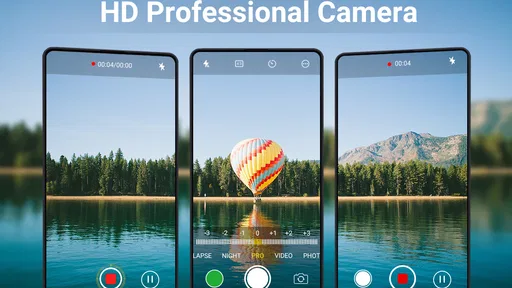
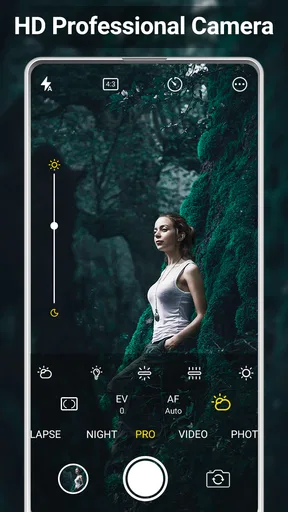
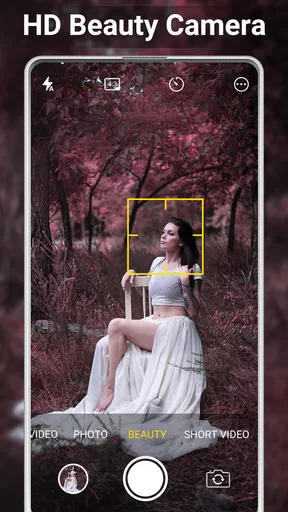
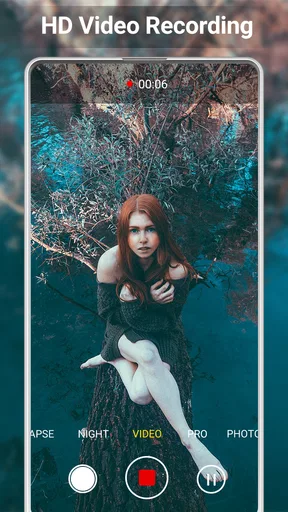
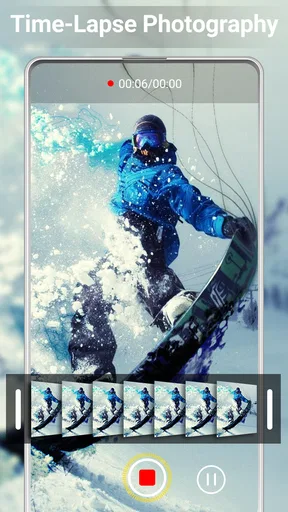
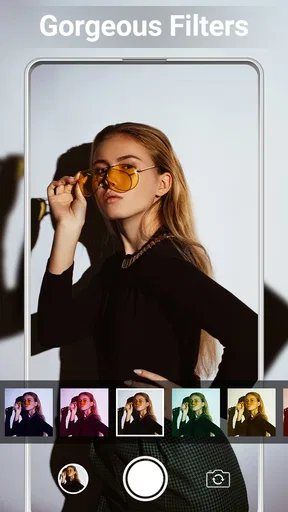
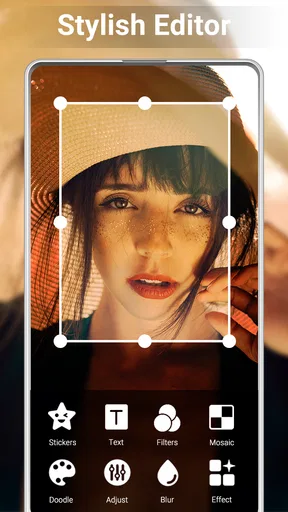
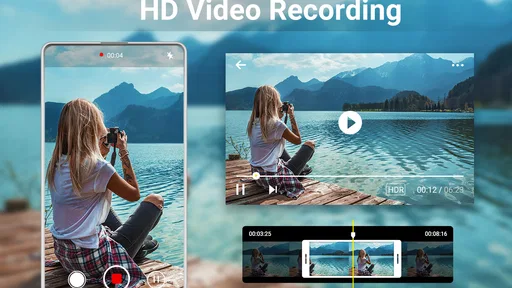
 Analysis by AppCompare
I tend to judge a camera app by what happens when a moment is moving faster than I can adjust settings. HD Camera for Android: 4K Cam is built around quick access to a range of shooting tools, with manual options available when I want more control. That makes it worth considering if your phone’s built-in camera feels limiting, though the best results still depend on the phone itself and the conditions around the shot.
When a connection is part of the picture
A camera app is most useful when it stays out of the way: I want to open it, frame a subject, and take the picture without turning a simple moment into a setup session. The appeal here is the collection of camera modes and controls in one place. I would treat the app as a way to work with the camera on my phone, not as a replacement for the phone’s hardware or a guarantee that every shot will look alike.
Connectivity matters more around the edges of taking a photo than while composing one. For example, if I’m planning to share a picture, look up a photography tip, or move a result into another service, those steps can depend on the network and the other app involved. I would keep the actual capture and the later sharing as separate parts of the workflow, rather than assuming that a camera app handles both in the same way.
Good fit for everyday phone photography
For a quick family picture, a view across the street, or a short clip from a day out, simple controls matter more than an elaborate editing routine. I like having options to explore without needing to use them every time. If I’m in a hurry, I can start with the ordinary camera controls; if the light or subject calls for it, I can try a different mode or adjust a setting.
That flexibility is especially useful when the scene changes. A bright window behind a person, for instance, can make an automatic exposure choice less flattering. Rather than repeatedly tapping the shutter and hoping for a better result, I can experiment with exposure or HDR and compare the outcome. A small practical tip is to take a test frame before an important shot: it gives me a chance to check whether the subject, background, and brightness are working together.
On a walk, I might use the app for a landscape, then switch to a closer subject without wanting to learn a completely different interface. In a dim restaurant, I would try night mode but hold the phone as steadily as possible and avoid expecting it to freeze a moving subject. That distinction matters: a mode can help with a challenging scene, but it cannot remove every limitation caused by low light or motion.
Using the camera in real situations
I use this section to think through the moments when a camera app has to fit around real life: getting ready before a brief opportunity, choosing a setting without missing the shot, and checking the result afterward. A helpful habit is to decide what matters most before opening the camera—speed, a particular look, or video detail—so the next section can focus on how those choices play out in different mobile settings.
Worth Reading Before You Choose

Baby Panda World Brings Quick Play to Modern Phones, but Its Game Library Feels Busy

ESPN’s Live Game View Makes Following Close Games Easier

QuizzLand Review: A Good Fit for Short Trivia Breaks, Not Every Player

Basketball Stars: Multiplayer Is Fast, but Can It Recover When Matches Go Wrong?

WEBTOON Turns Phone Updates Into a Better Reading Routine

Link to Windows Runs on Shared Habits, Not Social Feeds
Modes, manual choices, and useful trade-offs
Automatic shooting is usually the sensible place to begin, particularly when a moment is fleeting. Manual controls are more helpful when I can pause and make a deliberate choice. If a scene looks too bright or too dark, changing exposure can be more direct than taking several nearly identical pictures. ISO and white balance are worth exploring too, but I would adjust one thing at a time so I can tell what actually improved the image.
HDR can be useful when the bright and dark areas of a scene compete, such as a shaded subject against a bright sky. I would not turn it into a default for every frame: scenes with movement can make the result less predictable, and a natural-looking image may be better without extra processing. Beauty mode is similarly situational. It may suit a casual selfie, but anyone aiming for a faithful portrait may prefer a more restrained look.
The 4K video option is appealing when I want detail in a clip, but it is not automatically the best choice for every occasion. Higher-resolution video can take more room to store and can be less convenient to move or share, especially when a connection is slow or a data plan is limited. For a short clip meant mainly for a quick message, a lower-demand option—if available on the phone and in the app’s controls—may be more practical. I would check the selected settings before recording something long.
Mobile moments and interruptions
A realistic example is recording a few seconds of a school performance or a friend’s celebration. I would open the camera before the moment begins, check the framing and available space on the phone, and avoid spending the event changing settings. If I need 4K, I would choose it intentionally; if the goal is simply to keep a memory and share it promptly, a more modest recording choice may save time later.
If something interrupts the process, I would first check whether the camera view has returned and whether the photo or clip was actually captured before trying again. Repeatedly tapping the shutter can create duplicates, while assuming a recording was saved can risk losing the moment. After an interruption, a quick review of the result is a useful habit, particularly before closing the app or switching to another task.
Battery and storage are also practical constraints on a phone outing, even when the camera app itself is behaving normally. I would reserve extended video recording for moments that justify it, and leave enough room on the device before setting out. If I expect to share several large clips away from a reliable connection, waiting until I’m on a suitable network can make the follow-up less frustrating.
How it compares with the usual camera choices
The built-in camera is the natural alternative, and it may be the better choice for someone who already likes its interface, processing, and sharing workflow. A dedicated camera app makes more sense when I specifically want to experiment with manual controls or try modes such as night photography and HDR from a different interface. Neither choice can add physical camera capabilities that a phone does not have, so I would compare the actual results on my device rather than assuming the app name guarantees a particular image quality.
Compared with a separate photo editor, a camera app serves a different point in the process. I reach for this kind of tool while framing and capturing; an editor is more appropriate when I want to crop, retouch, or prepare a finished image afterward. Keeping those jobs separate can be simpler: I can take a straightforward shot first, then decide whether it needs editing instead of adding extra steps to every picture.
Who should try it—and who may prefer another option
I’d consider this app if I enjoy taking pictures on Android and want a choice between quick shooting and more hands-on adjustments. It may also suit someone who likes testing different looks on a casual portrait or wants to try a higher-resolution video setting. The developer is iMediaStar, and the app is free to start, with in-app purchases listed from $2.99 to $9.99 per item. That makes it reasonable to try before deciding whether any paid option is useful to me.
Someone who wants the simplest possible camera, never changes settings, and is already happy with the phone’s default app may not gain much from switching. Likewise, it is not the right answer if the main goal is extensive post-production, advanced file management, or a dependable way to send media over a network; those needs are better handled by tools made for those jobs. The app is rated for Everyone, and its current version is 3.8.1, with Android 6.0 as the minimum operating system.
There is also a learning trade-off. Having multiple modes can make the app more versatile, but it asks me to decide which one fits the scene. I’d avoid changing several settings at once, especially before an important photo. A few low-stakes practice shots in daylight are a better way to learn the controls than trying to work them out while a one-time moment is unfolding.
First impressions and day-to-day handling
So, right off the bat, the interface of HD Camera for Android: 4K Cam is super clean and intuitive. I was pleasantly surprised by how easy it was to navigate. The app doesn’t bombard you with unnecessary options, which is a huge plus if you're like me and just want to get to snapping without a steep learning curve.
The app opens directly into camera mode, so you’re always ready to catch that perfect moment. The layout is sleek, with essential controls just a tap away. You can switch between different modes, like photo, video, and panorama, with a simple swipe. Trust me, if I can figure it out in seconds, you definitely can too!
Features Galore
Alright, let's get to the juicy stuff—the features. One of the standout features is, of course, its ability to shoot in 4K. This is perfect for those of you who want to get the highest quality possible from your phone's camera. I took it for a spin around the city, capturing everything from busy streets to tranquil parks, and the clarity was genuinely impressive. The details were sharp, and the colors popped beautifully.
The app also boasts a variety of shooting modes, including night mode, beauty mode, and HDR. The night mode was particularly handy; it brightened up my shots without making them look washed out. This is a lifesaver for evening adventures or dimly lit restaurants where the ambiance is perfect, but the lighting isn’t.
Another feature worth mentioning is the manual controls. If you're feeling a little more adventurous, you can tweak settings like ISO, exposure, and white balance. It’s perfect for those moments when the automatic settings just don't cut it, and you want to have complete control over your shot.
Smooth Sailing or Rocky Road?
When it comes to performance, the app runs smoothly on most devices. I didn’t experience any lag or crashes during my time with it, which is a relief because there's nothing worse than an app freezing right when you're about to capture something amazing.
One thing to note is that while the app is generally user-friendly, the array of options can be a bit overwhelming for complete beginners. But hey, a little exploration never hurt anyone, right? Plus, there are plenty of online communities and forums where you can pick up tips and tricks to make the most of these features.
Final Thoughts
So, is HD Camera for Android: 4K Cam worth the download? If you're looking to enhance your mobile photography without shelling out big bucks for a new device, I'd say give it a shot. It’s packed with features that cater to both novice and experienced photographers, and the 4K capability is a definite highlight.
In a nutshell, this app is a solid choice for anyone looking to elevate their mobile photography game. Just remember to have fun with it and don’t be afraid to experiment. After all, the best photos often come from unexpected moments!
So what are you waiting for? Grab your phone, download the app, and start capturing the world around you in stunning detail. Happy shooting!
Pros
- High-resolution 4K video recording.
- Intuitive user interface and controls.
- Wide range of manual settings.
- Supports multiple photo formats.
- Fast and responsive performance.
Cons
- Contains ads that can be intrusive.
- Some features require in-app purchases.
- Occasional app crashes reported.
- Limited editing tools within app.
- May drain battery quickly.
FAQs for HD Camera for Android: 4K Cam
What features does the HD Camera for Android: 4K Cam offer?
The HD Camera for Android: 4K Cam provides a variety of features including professional-grade manual controls, real-time filters, and a selection of shooting modes like burst and panoramic. It supports 4K video recording and offers a user-friendly interface for both beginners and advanced users. The app also includes a built-in photo editor for quick touch-ups.
Is the HD Camera for Android: 4K Cam compatible with all Android devices?
While the app is designed to be compatible with a wide range of Android devices, some features such as 4K recording may not be available on older or lower-spec devices. It's recommended to check the app's requirements on the Google Play Store to ensure your device is supported before downloading.
Does the app contain advertisements or in-app purchases?
Yes, the HD Camera for Android: 4K Cam contains advertisements that help support the developers. The app also offers in-app purchases that can enhance your experience by unlocking additional features or removing ads. Users can decide if they want to make a purchase based on their needs.
How does the app handle privacy and data security?
The HD Camera for Android: 4K Cam takes user privacy seriously. The app requires permissions to access your camera and storage, but it does not collect personal data without consent. It's important to review the app’s privacy policy for more details on how your data is handled and protected.
Can I edit photos and videos directly within the app?
Yes, the app includes a built-in editor that allows you to make basic adjustments such as cropping, rotating, and applying filters to your photos and videos. However, for more advanced editing features, you may need to use a dedicated editing app. The integration is seamless, making it convenient for quick edits.


